API keys allow you to securely connect your applications to Tupel's services. This guide will show you how to find, create, and manage your API keys.
Step 1: Access Organization Settings
From your organization dashboard, click "Settings" in the left sidebar.
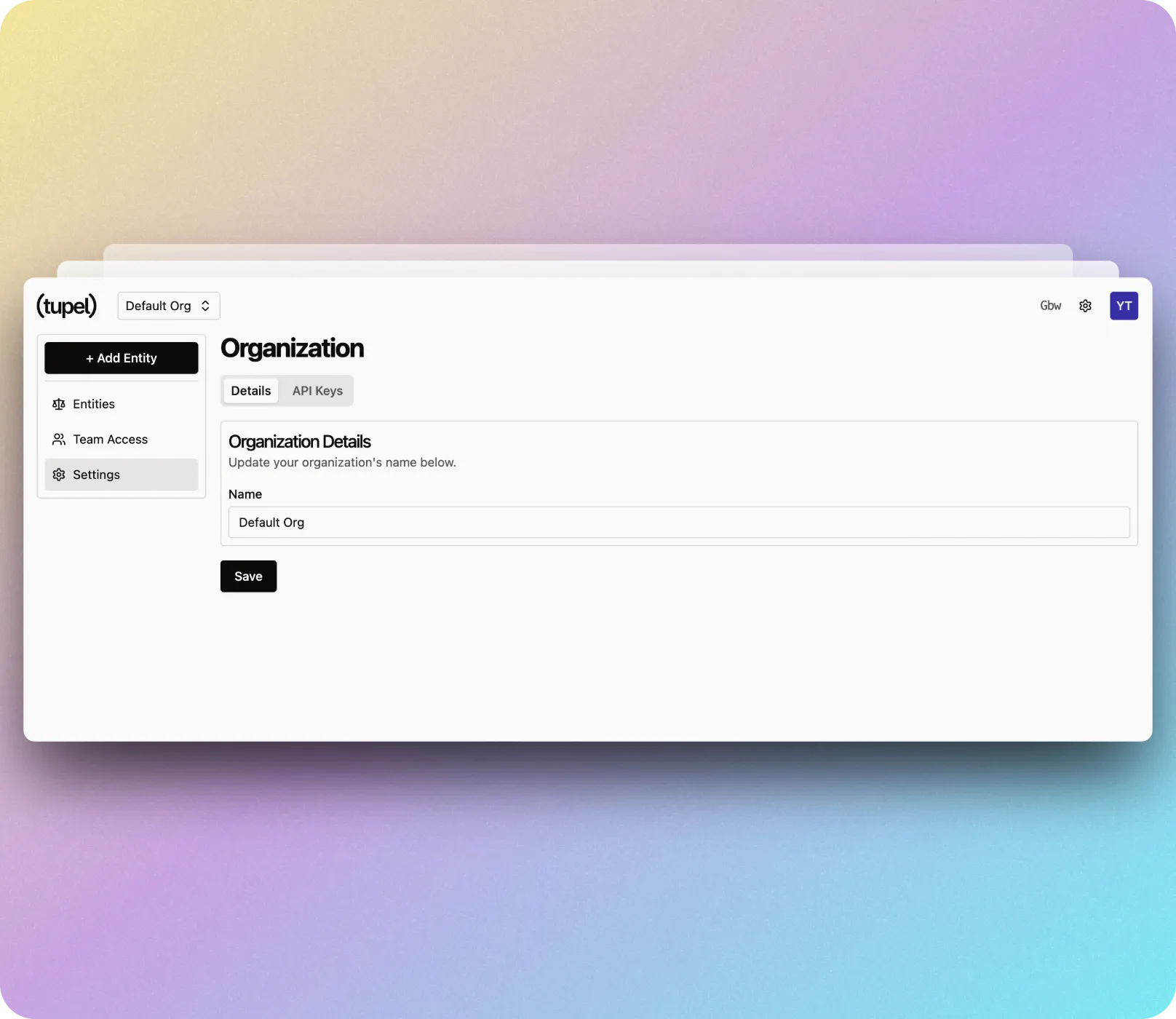
Step 2: Navigate to API Keys
Click the "API Keys" tab to view your API credentials.
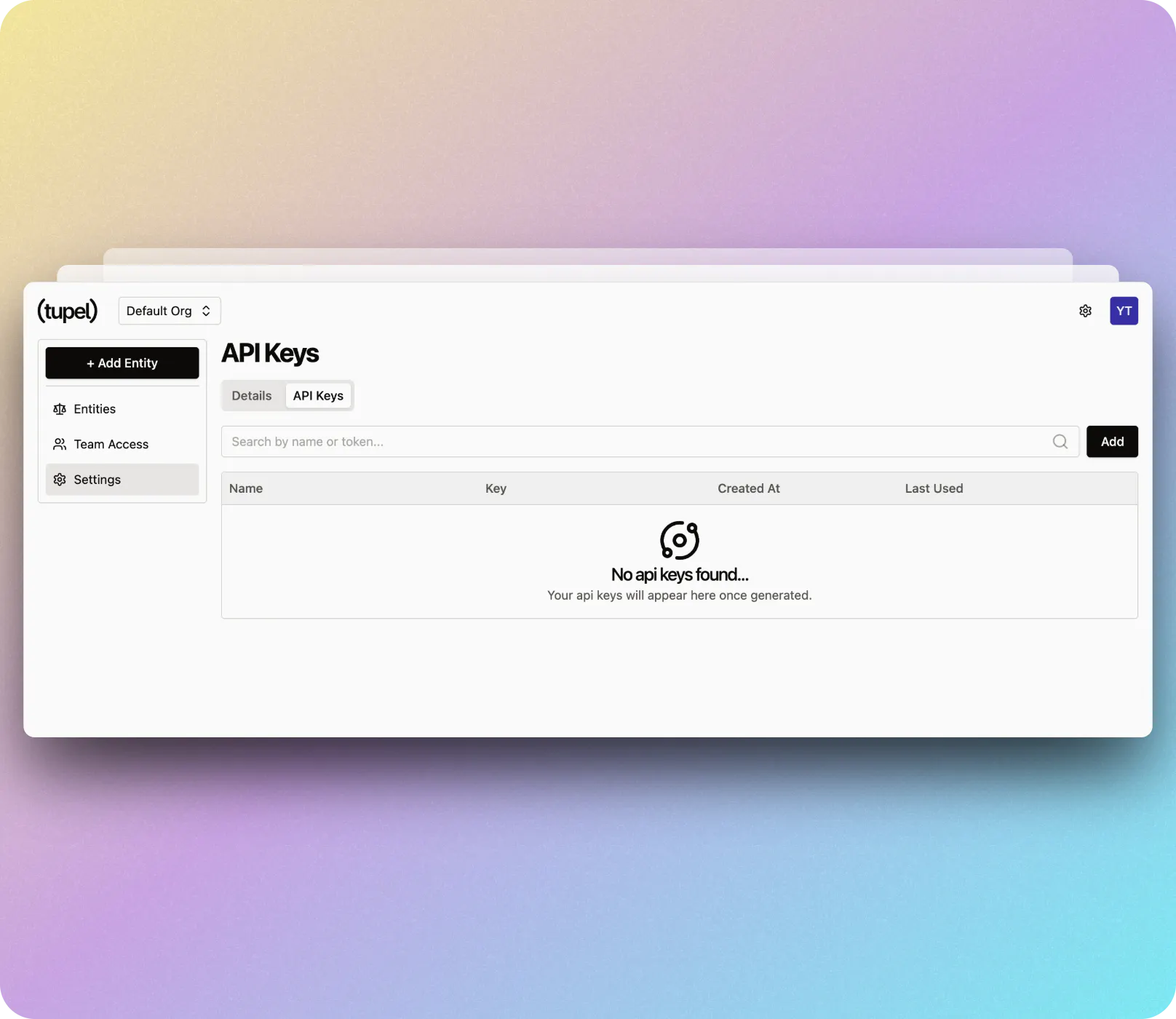
Creating an API Key
To create a new API key:
- Click the "+ Add" button in the top-right corner
- Enter a name for your API key (e.g., "Production" or "Development")
- Click "Add" to generate your new key
Viewing Your API Keys
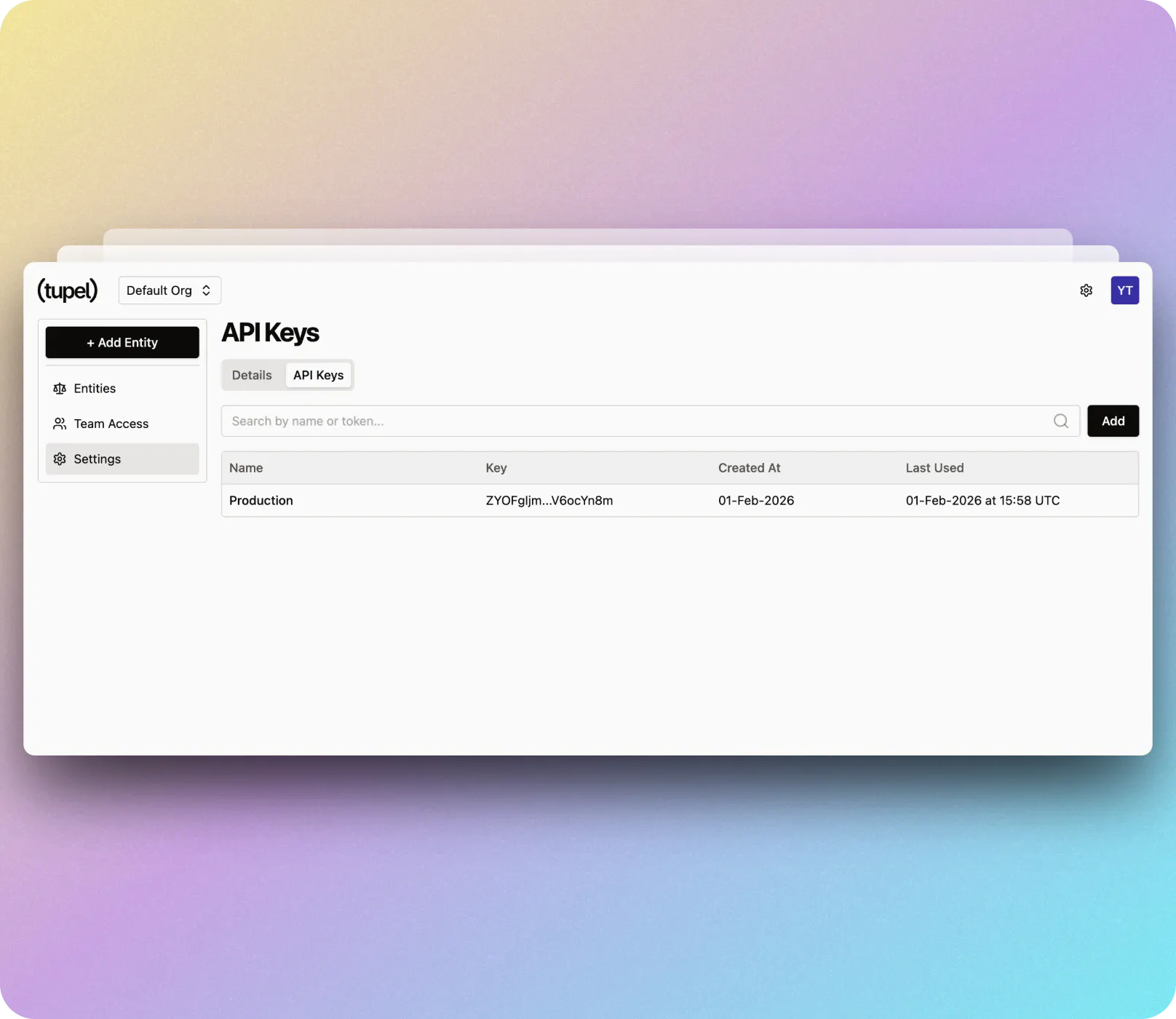
After creating an API key, you'll see:
- Key name
- The API key value (partially masked for security)
- Created date
- Last used timestamp
Finding Your Organization UID
Your Organization UID is required alongside your API key for authentication. You'll find it displayed in the API Keys section of your organization settings.
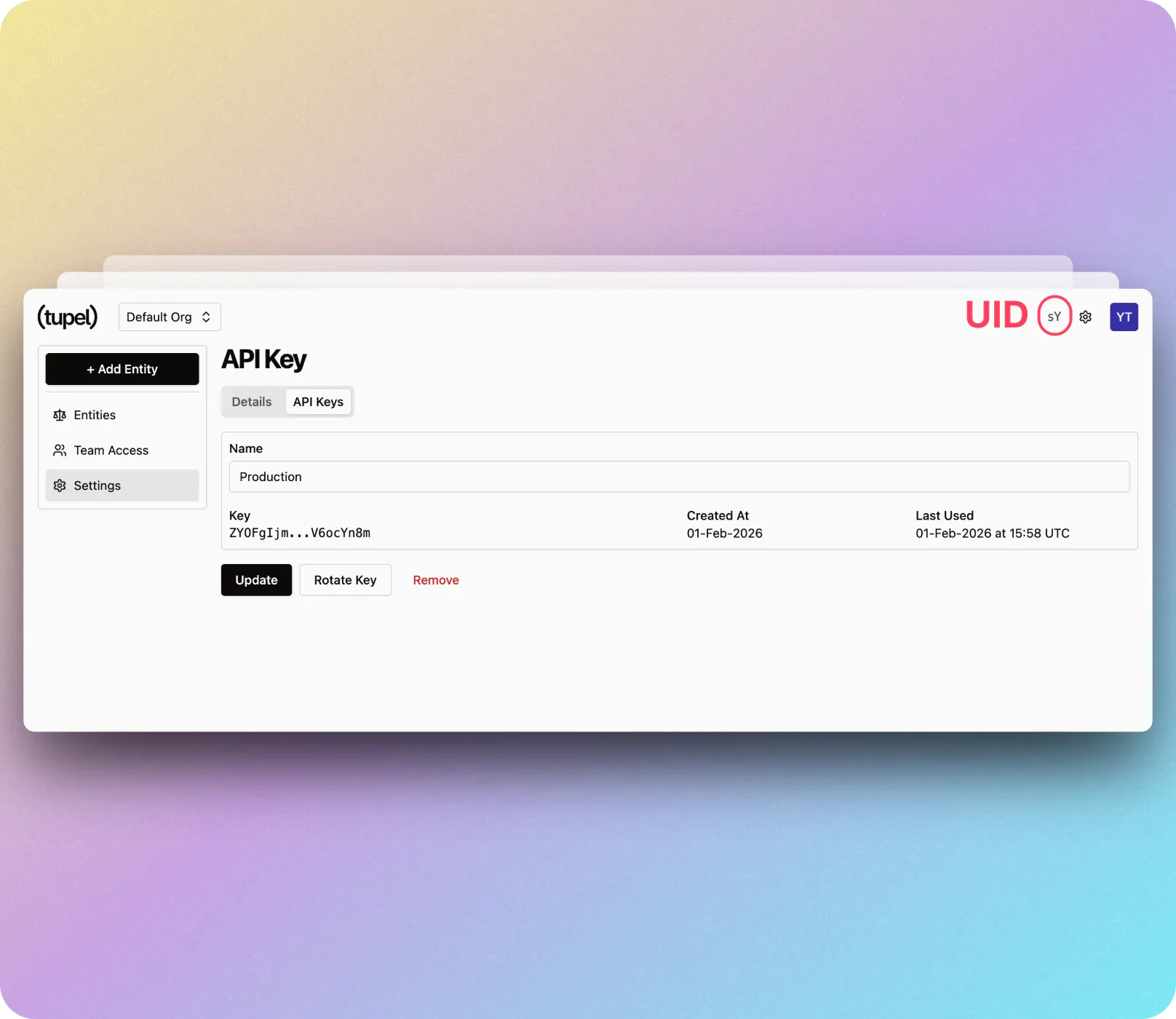
Managing Your API Keys
From the API Keys page, you can:
- Update: Click on a key to rename it
- Rotate Key: Generate a new key value (use this if you suspect your key has been compromised)
- Remove: Delete an API key (this action cannot be undone)
Security Best Practices
- Never share your API keys in public repositories or client-side code
- Use different API keys for different environments (development, staging, production)
- Regularly rotate your API keys, especially when team members leave
- Set up monitoring to detect unusual API usage patterns
- Monitor the "Last Used" timestamp to identify unused keys
Keep your API keys secure to protect your Tupel account and financial data.